
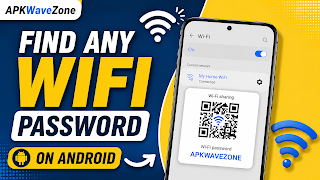
Finding a Wi-Fi password on your Android phone can be useful if you’ve connected to a network before but can’t remember the password. Instead of guessing or repeatedly asking someone for it, Android provides several built-in options that can help you view or share saved network details.
In this guide, we’ll explain practical and legal ways to find or recover a saved Wi-Fi password on an Android device without using suspicious applications or unsafe websites.
Check the Saved Wi-Fi Network
The easiest method is to check the Wi-Fi network that is currently saved or connected to your Android phone. On many modern Android devices, you can access this option through the Wi-Fi settings.
Open Settings on your Android phone and select Wi-Fi, Network & Internet, or a similarly named option. Then select the Wi-Fi network your phone is currently connected to.
Depending on your Android version and phone manufacturer, you may see an option such as Share, QR Code, or Share Network.
How to View and Share a Saved Wi-Fi Network
When you select the sharing option, your phone may ask you to verify your identity using your PIN, fingerprint, face unlock, or screen lock.
After successful verification, a QR code will usually appear. On some supported Android versions, the Wi-Fi password may also be displayed below the QR code.
This feature is designed for networks that are already saved on your device and that you are authorized to use.
Use the QR Code to Share Wi-Fi
QR code sharing is another useful feature available on many Android devices. Instead of manually typing a long Wi-Fi password, the owner of the connected Android phone can open the saved Wi-Fi network and select the sharing option.
The other phone can then scan the QR code and connect to the same network.
How QR Code Sharing Works
This method is especially useful when setting up a new phone or helping a family member connect to a home Wi-Fi network.
The network information is transferred through the QR code, which can reduce typing mistakes and make the connection process faster.
However, the exact menu names and steps can vary between Samsung, Google Pixel, Xiaomi, OnePlus, Oppo, Vivo, and other Android devices.
Get the Wi-Fi Password from Another Connected Android Phone
If another trusted person is already connected to the same Wi-Fi network, they may be able to share the network with your Android phone.
On supported devices, the connected user can open Wi-Fi Settings, select the network, and tap the Share or QR Code option.
After identity verification, a QR code will appear. You can then scan the QR code with your phone to connect to the same network.
This method is particularly useful when the password isn’t written down or the network owner doesn’t remember it. It can also eliminate the need to reset the router simply because the Wi-Fi password was forgotten.
Check Your Router for the Wi-Fi Password
If you manage your own Wi-Fi network, you can also check the router for the original network information.
Many home routers and internet service provider devices have a sticker attached to them. This sticker may contain the default Wi-Fi network name and password.
Where to Find the Default Wi-Fi Password
Look at the back, bottom, or side of your router for information labeled:
- Wi-Fi Password
- Wireless Key
- WPA Key
- Network Key
- SSID
Keep in mind that this information usually represents the original Wi-Fi password. If someone changed the password later, the information printed on the router may no longer work.
In that situation, you can check the router’s settings or use Android’s built-in network-sharing feature if the network is already saved on an authorized device.
If you don’t remember your router’s administrator credentials, check the official documentation provided by the router manufacturer instead of installing unknown password-recovery applications.
Avoid Suspicious Wi-Fi Password Apps
Android users may come across apps that claim they can instantly reveal passwords for nearby Wi-Fi networks. These apps should be treated with caution.
A legitimate app cannot simply reveal the password of a private Wi-Fi network that you don’t have permission to access. Some suspicious applications may request unnecessary permissions, display excessive advertisements, or collect personal information.
For your own network, Android’s built-in Wi-Fi sharing features and your router’s settings are generally safer options.
Avoid websites and applications that promise access to passwords belonging to nearby private networks.
Keep Your Wi-Fi Network Information Secure
Knowing how to recover a forgotten Wi-Fi password is useful, but it’s equally important to protect your network information.
Only share your Wi-Fi credentials with people you trust. For home networks, use a strong password and, when supported by your router, modern wireless security such as WPA2 or WPA3.
You should also avoid sharing private network information publicly unless you are comfortable allowing others to connect to your network.
Accessing a Wi-Fi network without permission can violate the network owner’s privacy and may also violate local laws.
Final Thoughts
Android provides several simple ways to recover or share Wi-Fi network information when you’ve forgotten a password.
You can check a saved network in your Android Wi-Fi settings, use the built-in QR code sharing feature, ask an authorized user to share the network, or check your router for its original Wi-Fi credentials.
These methods are generally safer than using third-party applications that claim to reveal Wi-Fi passwords.
If you forget a Wi-Fi password, start by opening your Android device’s Wi-Fi settings and looking for the Share or QR Code option. If that option isn’t available, check your router or contact the person who manages the network.
Always make sure you only recover or share passwords for Wi-Fi networks that you own or have permission to use.